123
Your observation is completely correct. Windows laptops and Chromebooks do not have a universal standard for port spacing. Because every PC manufacturer puts their USB-C ports at different distances, the flush, dual-plug adapters made for MacBooks will not physically fit a generic PC.
If your goal is to build an exceptionally reliable, heavy-duty Ethernet network on a PC, you can achieve it using physical stabilization tricks or by combining two separate Ethernet adapters for unmatched system network backup.

Part 1: How to Fix the Mechanical Reality on a PC

Since you cannot use dual-plug flush hubs on a PC, you have to find alternative methods to eliminate the physical leverage that bends single USB-C ports:
  • Heavy Braided Tail + Right-Angle Cable Adapter: Instead of a hub that sticks directly out of your laptop like a lever, buy a short right-angle USB-C extension cable. The cable plugs into the laptop at a sharp 90-degree angle, running perfectly flat against the side of the chassis. You can even secure this cable to the side of the laptop with a small piece of tape or Velcro. The heavy Ethernet adapter connects to the other end of this cable, resting safely flat on your desk so it cannot pull or twist the port.
  • The Framework Laptop Exception: If you specifically want modular hardware, look at the Framework Laptop ecosystem. This highly customizable Windows/Linux PC utilizes swappable "Expansion Cards." You can slide an official Framework Ethernet Expansion Card directly into the side of the laptop shell. Once clicked in, it behaves like a factory-installed, structurally integrated port, removing the need for external dangling dongles entirely. [1, 2]

Part 2: Running Two Ethernet Adapters to Guarantee Uptime

You mentioned looking into using two separate Ethernet adapters simultaneously. This is a legitimate network engineering practice used to maximize system reliability on Windows and Linux PCs. You can achieve this setup in two ways: [3, 4]

1. Network Redundancy (Failover) [4]

You plug two separate USB-C Ethernet adapters into two different ports on your PC, running two distinct network cables back to your router. [3]
  • How it works: Windows automatically detects both adapters. By default, it prioritizes the faster or more stable link.
  • The Benefit: If someone physically kicks one cable loose, or if one USB-C port glitches out and disconnects, Windows instantly fails over to the second Ethernet adapter in milliseconds. Your download, game, or video call will not drop because the backup port is already live and running. [3, 5]

2. Network Aggregation (NIC Teaming / Channel Bonding)

Instead of one adapter sitting idly as a backup, you can actively merge the bandwidth of both adapters into a single, high-speed connection. [6]
  • How it works: Software tools like Speedify or built-in OS command-line utilities can bind multiple network interface cards (NICs) into a unified tunnel. [3, 6]
  • The Benefit: If you have two separate internet lines, this technique lets you combine their speeds (e.g., merging two 100Mbps links into a single 200Mbps pool) while creating a structurally redundant connection. [6, 7]
Would you like help choosing robust right-angle cables to physically protect your ports, or are you more interested in a step-by-step guide on how to configure two network adapters to run simultaneously on Windows?
Yes, specific enterprise-grade devices use specialized pogo-pin arrays explicitly wired to bypass fragile USB ports for high-speed network connections. [1, 2]
Unlike consumer electronics where pogo pins only handle charging or smart keyboards, industrial rugged tablets and smartphones route the internal motherboard data lines directly through heavy-duty, spring-loaded copper contacts. [2, 3, 4]

Tablets and Phones That Support Pogo-Pin Ethernet

1. Rugged Tablets

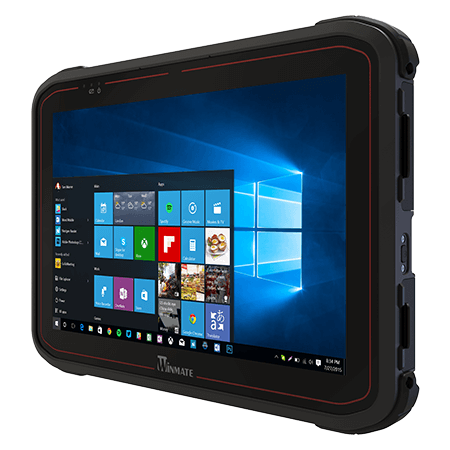
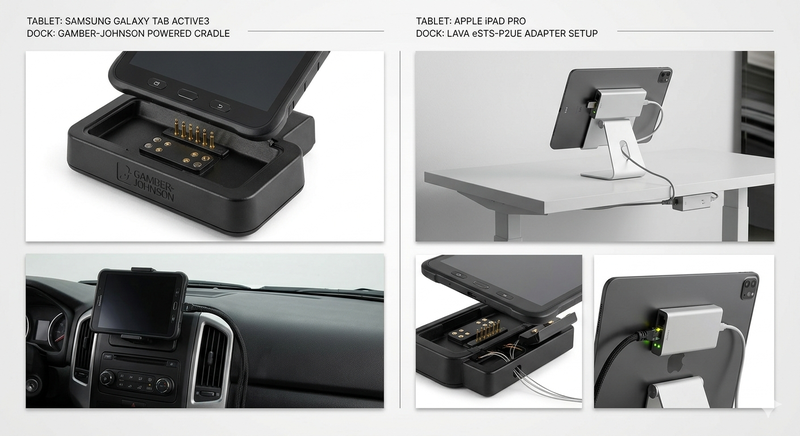
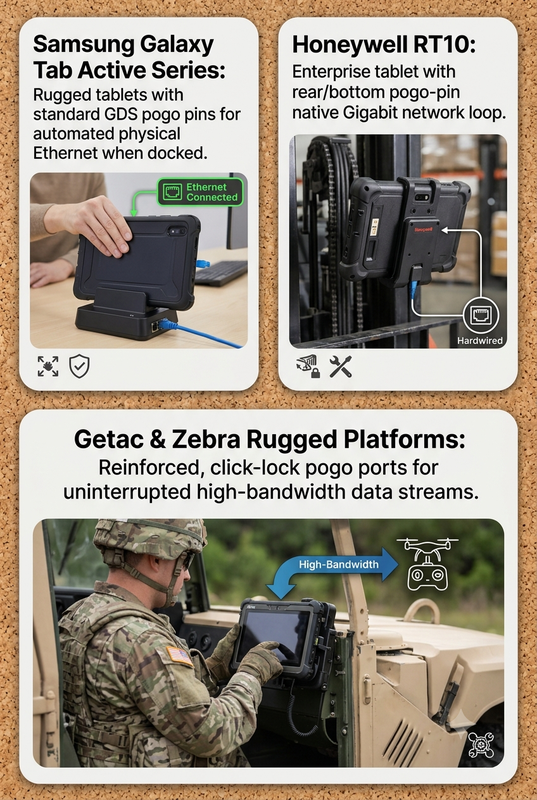
  • Samsung Galaxy Tab Active Series (Active3, Active4 Pro, Active5): These are the most common semi-rugged business tablets on the market. They feature standard copper GDS pogo pins along the bottom rim. When dropped into a compatible dock, the tablet automatically shuts down its internal Wi-Fi and shifts data routing entirely to the dock’s physical Ethernet socket. [5, 6]
  • Honeywell RT10 Rugged Tablet: Built for warehouses and forklifts, this enterprise machine features a rear/bottom pogo-pin dock connector that natively replicates desktop interfaces—including a hardwired Gigabit network loop. [7]
  • Getac and Zebra Rugged Platforms (e.g., Getac UX10, Zebra ET6x): Designed for military, aviation, and emergency vehicles. They utilise reinforced proprietary pogo ports that click lock, allowing uninterrupted high-bandwidth data streams (like drone controller interfaces or camera feeds) even during extreme vehicle vibration. [4, 8, 9, 10, 11]

2. Rugged Smartphones

  • Samsung Galaxy XCover Series (XCover 6 Pro, XCover 7): These are industrial-grade smartphones built with exposed pogo-pin tracks on the lower frame. When docked in a warehouse or delivery van charging bay, they use the pins to sync high-volume barcode data and manage network infrastructure.

Specialized Hubs and Docks for Pogo-Pin Ethernet [1]

Because these pogo connections are highly proprietary to prevent cross-brand damage, you cannot buy a "one-size-fits-all" universal hub. Instead, specialized fleet-management manufacturers design dedicated hardware options:

1. Form-Fitting Mobile Station Hubs

  • RAM Mounts GDS Powered Dock with RJ45: This heavy-duty docking cradle is designed specifically for the Samsung Galaxy Tab Active series. You snap the tablet into the frame, and the integrated spring pogo pins mate with the device's contacts. The back of the dock splits into a permanent RJ45 Gigabit Ethernet port and dual USB-A ports.
  • Honeywell RT10 Display Dock (RT10-DD): A desktop block specifically meant for the RT10 tablet. Sitting on a desk, you drop the tablet into the cradle, instantly activating an onboard RJ45 Ethernet port, 3x USB-A ports, and an HDMI display output entirely through the pogo-pin connection. [7]

2. Vehicle and Forklift Enclosed Docks

  • Zebra/Xplore XSLATE Secure Mobile Dock: A locking metal station designed for in-vehicle and forklift mounting. It secures the device with a one-handed mechanical latch and instantly hooks the tablet's pogo matrix into a fully replicated desktop array featuring Gigabit Ethernet and serial ports.
  • Strike Alpha Car Cradles with Ethernet Pass-Through: Frequently used by defense and bus transit services, these custom mount assemblies build the data translation chip directly into the cradle casing. Dropping the device onto the mount routes secure, low-latency internet through the base without needing to wear out the standard charging port. [5]
If you are trying to source an ultra-reliable setup for your workplace, which specific brand or tablet model are you deploying? I can look up its exact pin layout to confirm if it supports native data over pogo pins, or identify the matching enterprise dock part number for you.
The Hagibis magnetic hub uses a physical USB-C cable for Ethernet data, while its inductive coils are solely for wireless charging, a distinction necessary due to the impossibility of transmitting data through charging coils [CMC10LH]. A 24-pin magnetic breakaway adapter mirrors a full USB-C port to enable high-speed data transfer while providing a safe, detachable connection that protects device ports from wear and damage.

MagSafe Power Adapters For MacBooks With USB-C
Original link
Apple's MagSafe technology is designed solely for power transmission and cannot support data, meaning "MagSafe Ethernet hubs" actually connect via USB-C ports while leaving a cutout for the magnet. To prevent heavy Ethernet cables from damaging ports, dual-connector hubs provide structural stability, while 24-pin magnetic USB-C adapters offer a breakaway safety feature for non-Apple devices. Industrial alternatives include pogo-pin docks for rugged devices and stationary vertical docks, which eliminate port wear by removing physical leverage on the cable.

Plugable USB-C 5-in-1 Hub Designed for Apple MagSafe
Your MacBook was designed to "just work." So when you add an accessory, you expect the same. That's why this multiport hub for MacBook Pro (AMS-5IN1E) features a Thunderbolt 4 and USB4 compatible USB-C port-a rarity in similar MacBook hubs-so you get the same performance out of the hub that you'd expect from your laptop, and of course, space for MagSafe charging. With no drivers to download or software to install, this adapter for MacBook pro and MacBook Air is ready for easy expansion.

Just plug the AMS-5IN1E into the two USB-C ports on the side of your Mac for quick access to 2x USB 3.0 ports (5Gbps), perfect for a keyboard or legacy accessory. The Thunderbolt 4 and USB4 compatible USB-C port (40Gbps) can do anything you'd expect from one of your Mac's USB-C ports, including extending your display up to 6K 60Hz. And of course, take advantage of the Gigabit Ethernet port for a strong, stable connection. It even has a combination audio port for good measure. Award-Winning - Winning the best budget 40Gbps USB-C hub for Mac from Macworld, precision engineered to be a clip-on MacBook Air and MacBook Pro USB C hub, it's designed to fit snug, so it won't work with a laptop case.

This MacBook pro hub is designed for M1/M2/M3/M4/M5 to add extra ports without sacrificing your MagSafe connection. Designed to meet both on-the-go and professional deployment scenarios, this port hub for MacBook Air is compatible with Apple Silicon MacBooks only

Whether you need a hub MacBook Pro professionals can count on, or a MacBook Air M2 hub for portable convenience, the Plugable 5-in-1 Hub is the all-in-one solution. Enjoy effortless expansion with just a single connection.
Original link
Google Search
Please click here if you are not redirected within a few seconds.
Original link
Yes, you can absolutely get a hub that features both MagSafe compatibility and an Ethernet port. Depending on whether you are using a Mac laptop or an iPhone, there are two different types of hubs available. [1, 2, 3]
For MacBooks
There are "MagSafe-ready" USB-C hubs specifically engineered to fit snugly alongside your laptop's MagSafe charger. Because they clip to the side of your Mac, they leave your MagSafe port completely free for charging. [1, 2, 3]
  • Top Pick: The Plugable 5-in-1 USB-C Hub gives you Gigabit Ethernet, two USB 3.0 ports, a combination audio jack, and a fully functional 40Gbps USB-C/Thunderbolt 4 port. [1]
For iPhones
You can get versatile magnetic hubs that attach directly to the back of your iPhone via MagSafe. These expand your mobile workflow by adding an array of ports. [1, 2, 3]
  • Top Pick: Options like the Hagibis Magnetic USB C Hub magnetically snap to your phone while offering a Gigabit Ethernet port, 4K HDMI, USB-C Power Delivery, and USB-A data ports. [1]
If you'd like, let me know:
  • What device you are using this hub with (MacBook vs. iPhone)
  • What other ports you might need (e.g., HDMI, SD card slots) [1, 2]
I can help you narrow down the best model for your setup.
  • : Features six pogo pins on the rear to support "Smart Outfits," which are interchangeable cases that add functionality like ring lights or rugged protection.
  • PINE64 PinePhone &
    PinePhone Pro
    : Equipped with six internal pogo pins under the back cover for custom hardware extensions, including physical keyboards, LoRa modules, and fingerprint readers.
  • TECNO Modular Concept: A recent concept device utilizing magnets and pogo pins to swap camera lenses and power modules.
  • Motorola Moto Z Series (Legacy)
    : One of the most famous examples, using a 16-pin "Moto Mods" connector for accessories like Hasselblad cameras, projectors, and battery packs.
    PINE64 + 5